
BOUNDARY
- Recognizes closed areas and automatically generates them as a Polyline or Region.
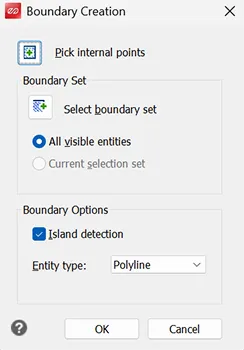
- Clicking the Select boundary set button lets you specify the range of objects to search for boundaries.
- Selecting the All visible entities option searches for boundaries among all objects currently visible on screen.
- If target objects were pre-selected using Select boundary set, the Current selection set option is selected, and you can only select areas within the boundary set.
- When the Island detection option is turned on, it recognizes all other closed areas inside the boundary and creates the boundary with the holes intact. When unchecked, it ignores the closed areas inside and selects only the outermost area.
1. Creating a Boundary or Region Demo Video
Section titled “1. Creating a Boundary or Region Demo Video”1) Running the command opens a popup window.
2) Clicking the Pick internal points button or the OK button starts the area selection action.
3) Click inside the area you want to select with the mouse. The outline of the clicked area is highlighted.
4) When you finish selecting, press ENTER. A Polyline or Region is created over the existing lines, depending on the Entity type option value.