
LINETYPE
-
Loads the Line Style Manager screen.
-
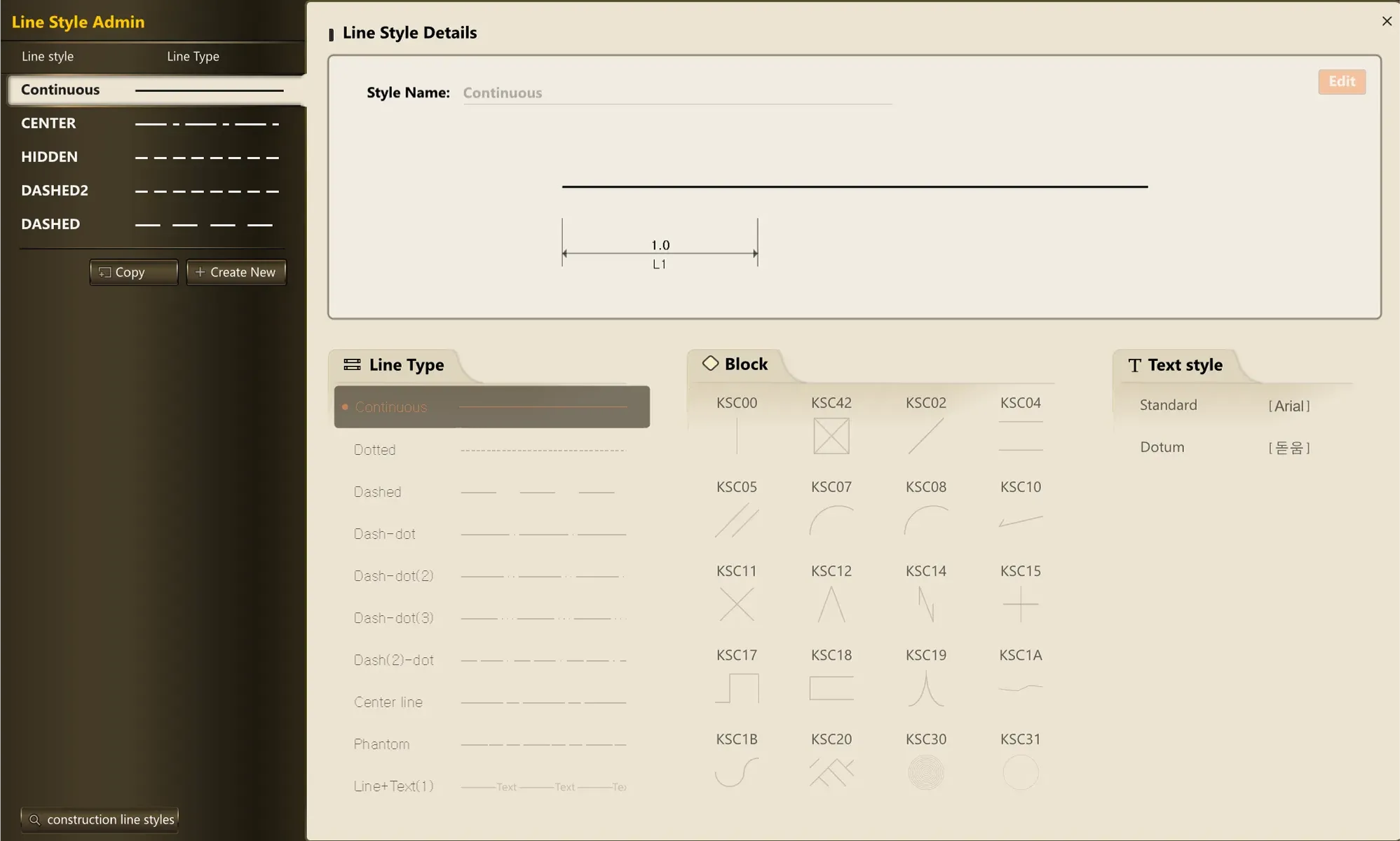
In the Line Style Manager screen, you can create a new line, or edit or delete an existing line.
-
The Line Style Manager consists of a line style list on the left and a line style editing screen on the right.
-
The Line Style Manager provides various line shapes by default, as shown below.
-
Basic DASH-type styles

-
Line + text type styles

-
Line + block type styles

-
Line + text + block type styles

1. How to Create a New Line Style Demo Video
Section titled “1. How to Create a New Line Style Demo Video”1) Click “Create New” below the line style list on the left.
2) After editing the style name and style details, click the “Apply” button in the upper right to create the new line style. Clicking “Cancel” cancels the creation in progress.
2. How to Delete a Line Style Demo Video
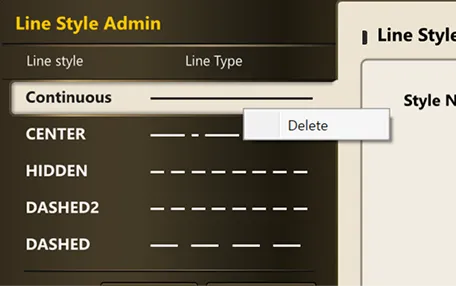
Section titled “2. How to Delete a Line Style Demo Video”1) Right-click the line you want to delete to open the delete menu, then click Delete to delete that line. (Note: lines that cannot be deleted will not be deleted.)
3. How to Edit a Line Style Demo Video
Section titled “3. How to Edit a Line Style Demo Video”1) Select the style you want to edit from the list on the left, then click the “Modify” button in the upper right of the details screen on the right.
2) After editing, click the “Apply” button to apply the changes to the drawing. Clicking “Cancel” discards the changes without saving.
4. How to Copy an Existing Line Style Demo Video
Section titled “4. How to Copy an Existing Line Style Demo Video”1) Select the original line style you want to copy from the line style list on the left, then click the “Copy” button below the list.
5. Adding CALS Line Shapes Demo Video
Section titled “5. Adding CALS Line Shapes Demo Video”1) At the bottom of the line style list on the left, click “Check Construction CALS Line Shapes.”
2) Double-click the desired line shape to add that line style to the Line Style list.
6. Adding External Line Shapes Demo Video
Section titled “6. Adding External Line Shapes Demo Video”1) At the bottom of the line style list on the left, click “Check Construction CALS Line Shapes.”
2) At the top, click the  button at the far right of the category row.
3) After loading the line style file, double-click the desired line style to add it.