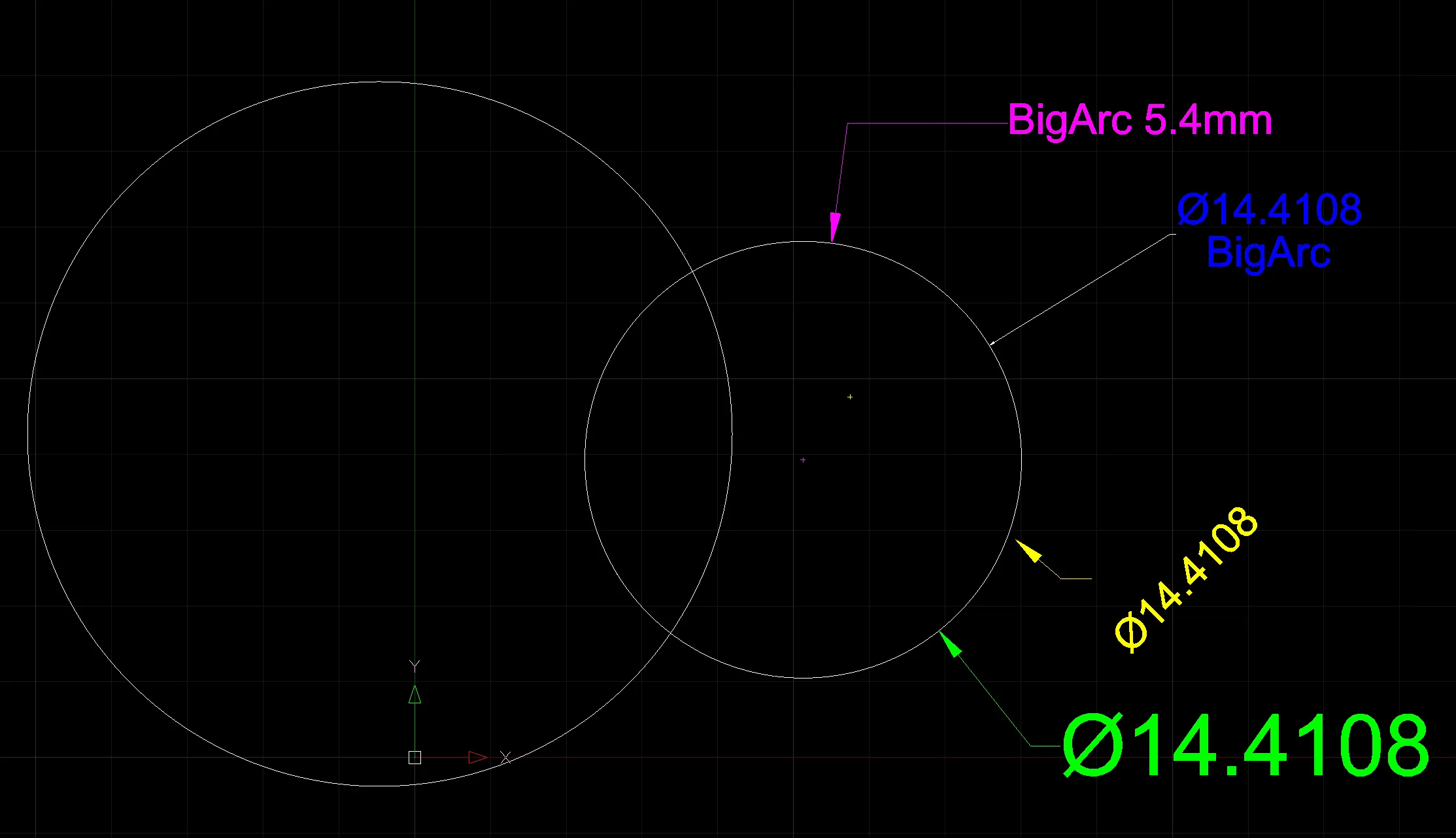
DIMDIAMETER
- Measures the diameter of the selected circle or arc and displays it as dimension text.
1. How to Enter a Diameter Dimension Demo Video
Section titled “1. How to Enter a Diameter Dimension Demo Video”1) Run the “DIMDIAMETER” command.

2) Select the circle or arc in the drawing to measure the diameter of.
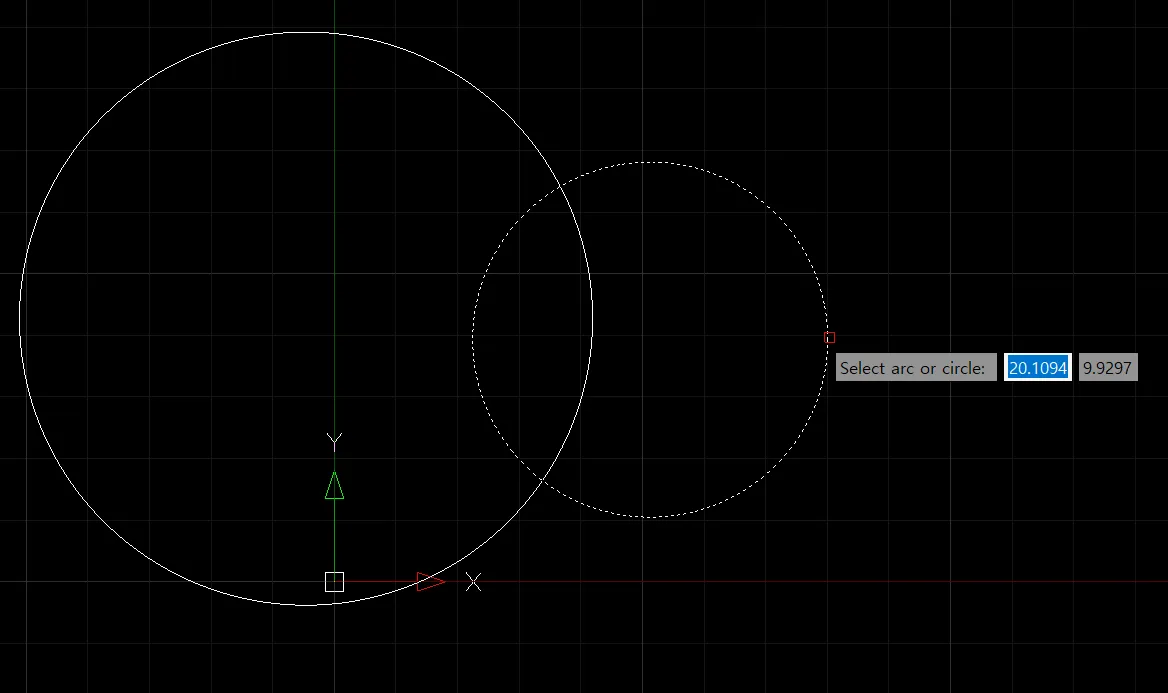
3) Insert the dimension text at the desired location.

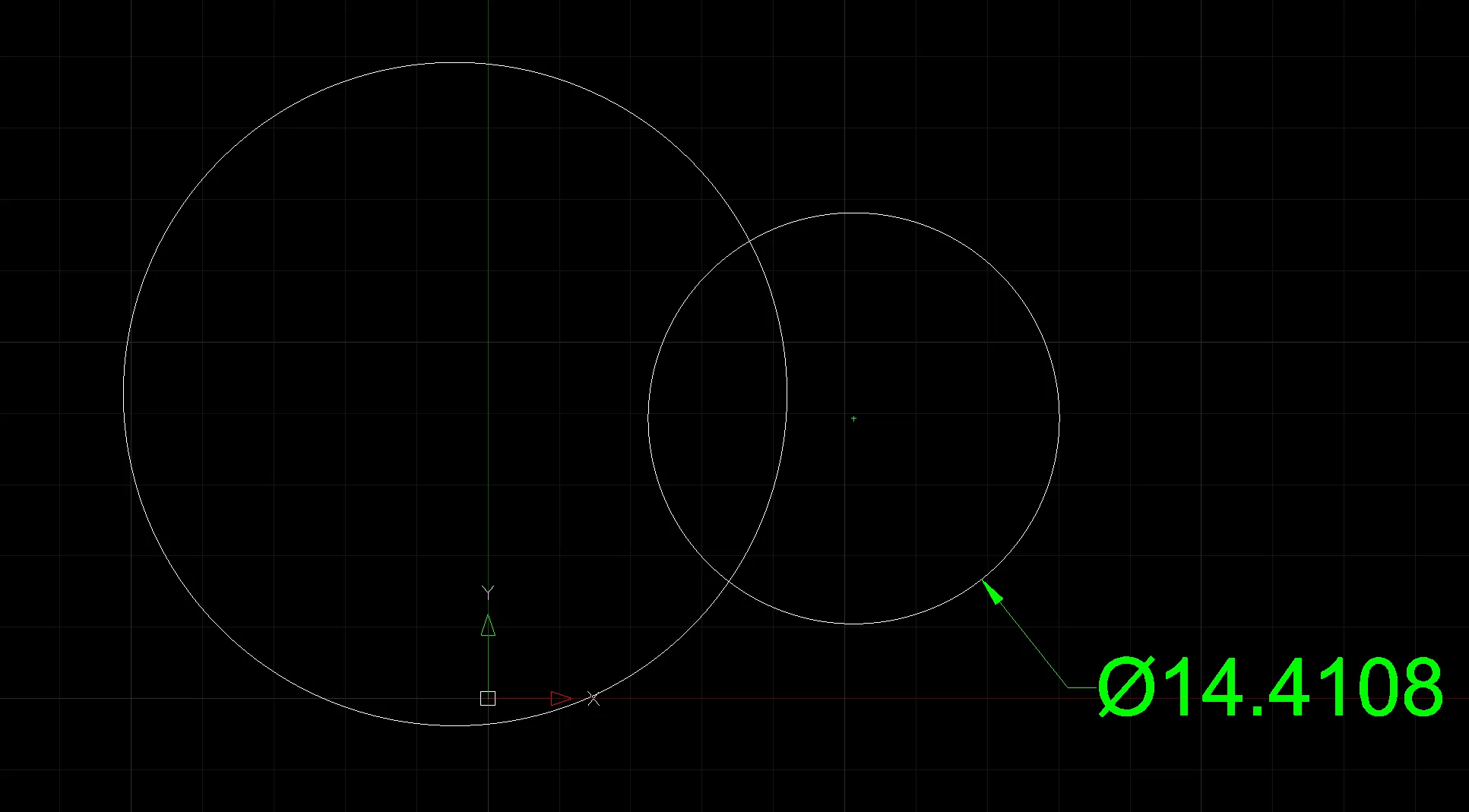
2. Changing the Angle of the Diameter Dimension Text Demo Video
Section titled “2. Changing the Angle of the Diameter Dimension Text Demo Video”1) Run the “DIMDIAMETER” command, and select the circle or arc in the drawing to measure the diameter of.
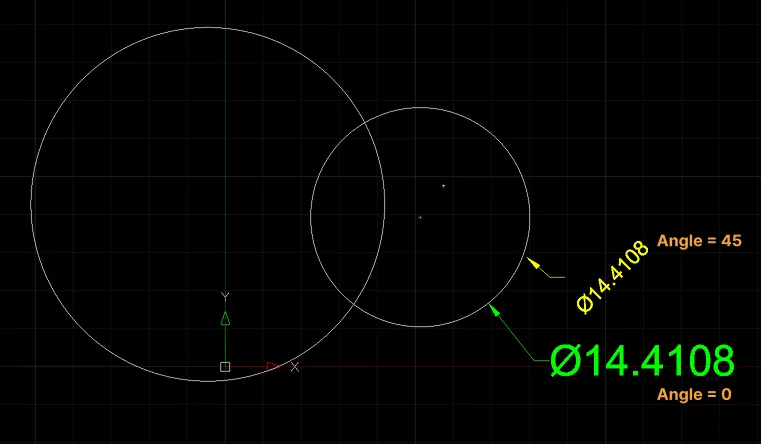
2) Click the Angle option and enter an angle value; the dimension text is then entered at the specified angle. (The default is 0 degrees.)

3. How to Enter Diameter Dimension Text as Multiline Text Demo Video
Section titled “3. How to Enter Diameter Dimension Text as Multiline Text Demo Video”1) Run the “DIMDIAMETER” command, and select the circle or arc in the drawing to measure the diameter of.
2) Click the Mtext option; the Text Editor toolbar appears and the dimension text enters edit mode, then enter the text on multiple lines.

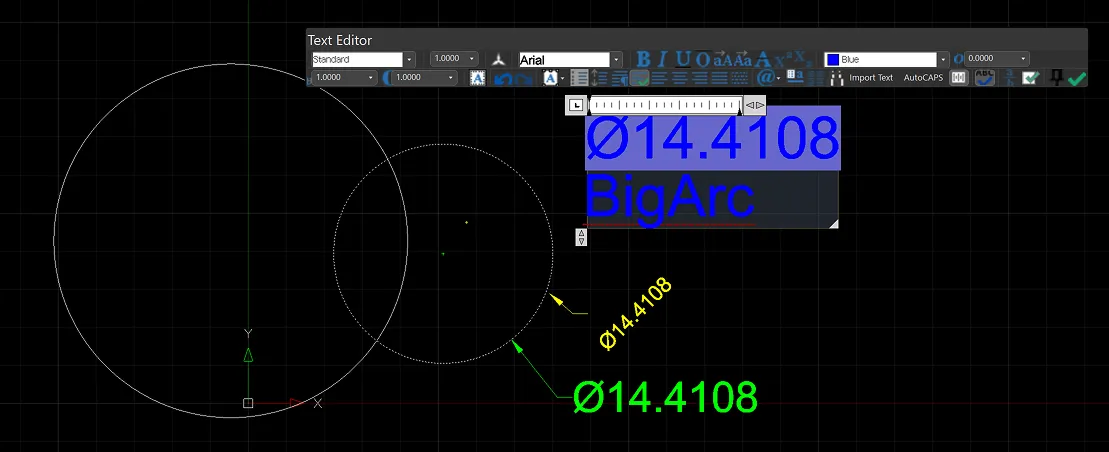
3) Click the Done button (V) on the Text Editor toolbar, or click an empty area of the drawing to finish editing.
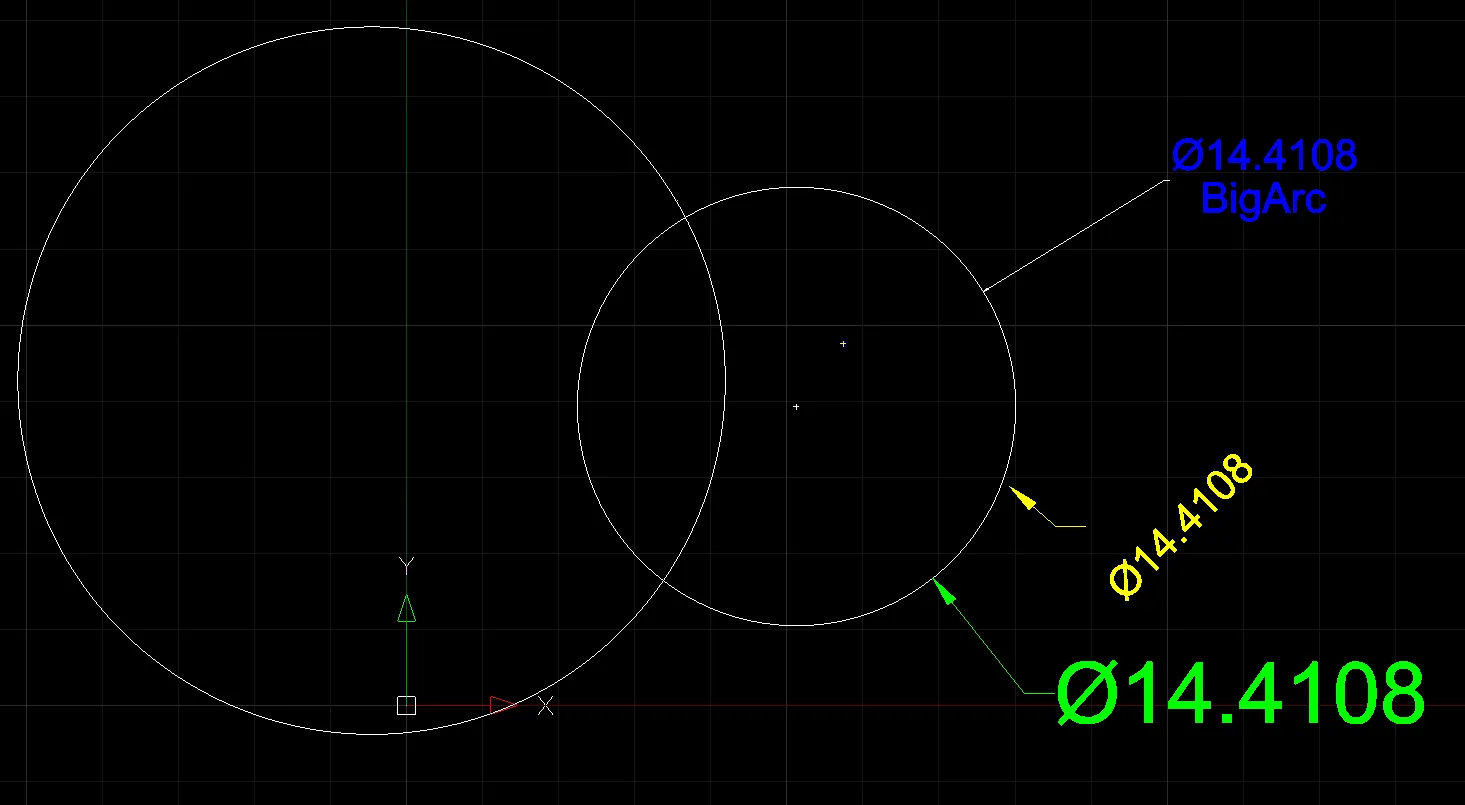
4. How to Change the Diameter Dimension Text Demo Video
Section titled “4. How to Change the Diameter Dimension Text Demo Video”1) Run the “DIMDIAMETER” command, and select the circle or arc in the drawing to measure the diameter of.
2) Click the Text option, and enter the text string to change.

3) Press ENTER, then place the diameter dimension at the desired location in the drawing.