CHAMFER
- Chamfers the edges of an object that has vertices.

- Chamfer option keywords
- Polyline: Selects a 2D polyline object with vertices and chamfers all of its corners.
- Distance: Sets the length of each of the two edges connected to a vertex.
- Angle: Sets the length of one edge connected to a vertex, along with the angle from that edge to the adjacent edge.
- Method: Sets whether to use the Distance or Angle setting to perform the chamfer.
: After running the Distance keyword, the option is automatically set to Distance;
after running the Angle keyword, it is automatically set to Angle. - Trim: Sets whether to delete the original corner after chamfering.
(No Trim: does not delete, Trim: deletes) - Settings: Opens the CAD popup window for Chamfer/Fillet option settings.
- Multiple: Continuously performs chamfering until you exit with ESC.
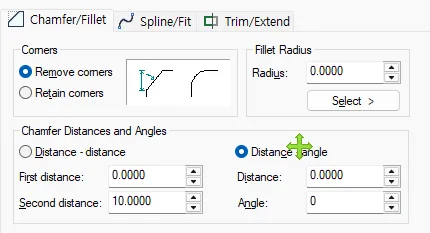
- Chamfer settings popup window
- Corners: Sets whether to delete the original corner after chamfering.
- Distance-distance: Performs the chamfer by setting the length of each of the two edges connected to a vertex.
- Distance-angle: Performs the chamfer by setting the length of one edge connected to a vertex and the angle from that edge to the other edge.
1. How to Chamfer the Edges of an Object Demo Video
Section titled “1. How to Chamfer the Edges of an Object Demo Video”1) Run the “CHAMFER” command.
2) Select one edge of the object to chamfer.
3) Select another edge adjacent to the selected edge to perform the chamfer and end the command.