Set print options for printing and preview or print to paper or file
How to use
- Method 1
- Command Input Window > Command : PLOT
- Method 2
-
Top Bar Right >
 Print Button
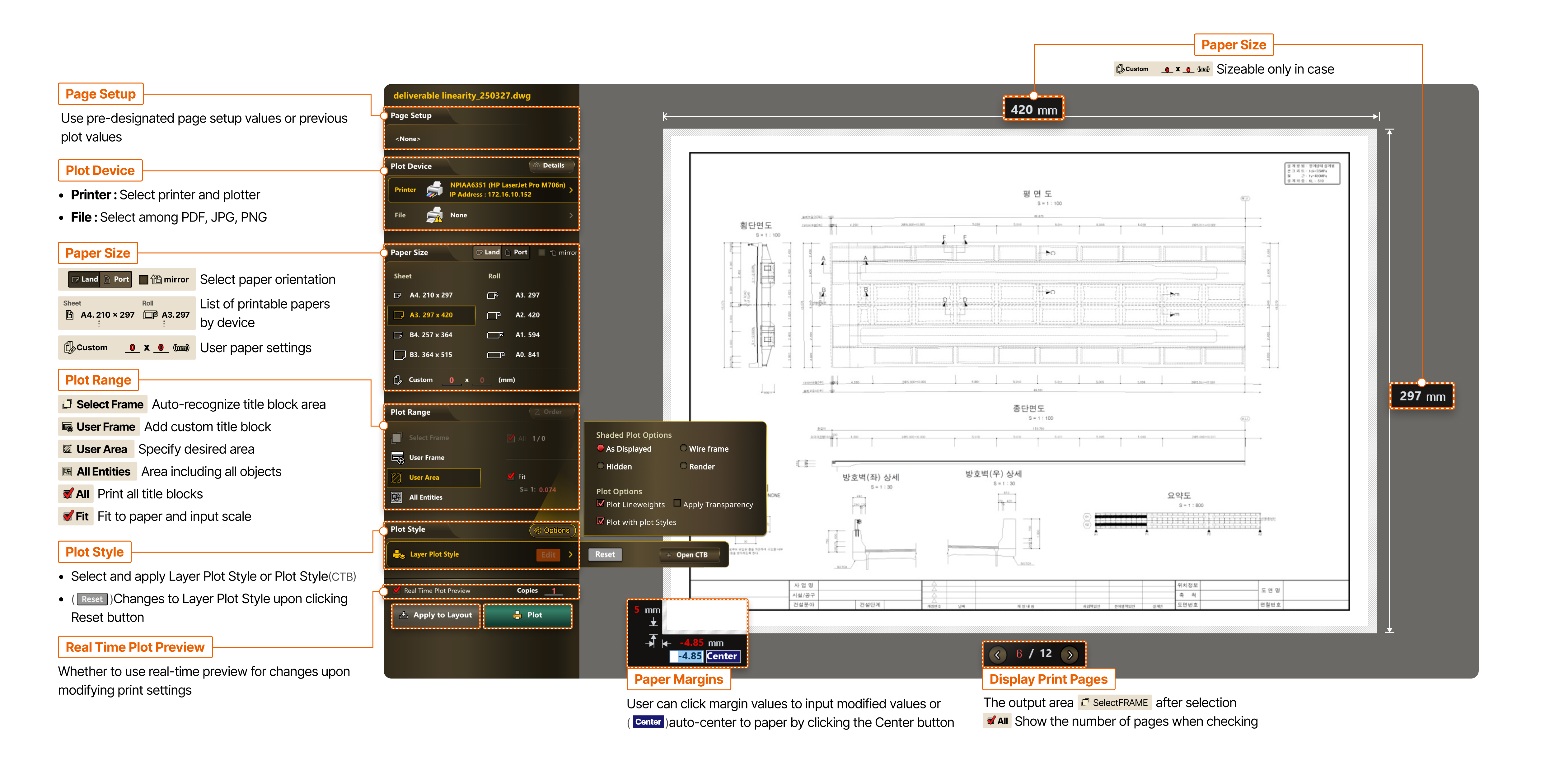
- Page Setup
- Use pre-designated page setup values or previous plot values
- Plot Device
- Printer : Select printer and plotter
- File : Select among PDF, JPG, PNG
- Paper Size
- Select paper orientation
- List of printable papers by device
- User paper settings
- Print Range
- Select Frame : Auto-recognize title block area
- User Frame : Add custom title block
- User Area : Specify desired area
- All Entities : Area including all objects
- All : Print all title blocks
- Fit : Fit to paper and input scale
- Plot Style
- Select and apply Layer Plot Style or Plot Style (CTB)
- Changes to Layer Plot Style upon clicking Reset button
- Real Time Plot Preview
- Whether to use real-time preview for changes upon modifying print settings
- Paper Margins
- User can click margin values to input modified values, or auto-center to paper by clicking the Center button
- Display Print Pages
- Displays number of pages when Fit to Title Block is selected for Print Area and Print All is checked
- Paper Size
- Size adjustable only when user paper is 0 x 0(mm)