Create each layer to manage colors, line types, line weights, transparency, printing, etc. per layer
How to use
- Method 1
- Command Input Window > Command : LAYER
- Method 2
-
Command View
All > Layer >
 Layer Management > Layer Manager
- Method 3
- Top Bar > Layer > Open Layer
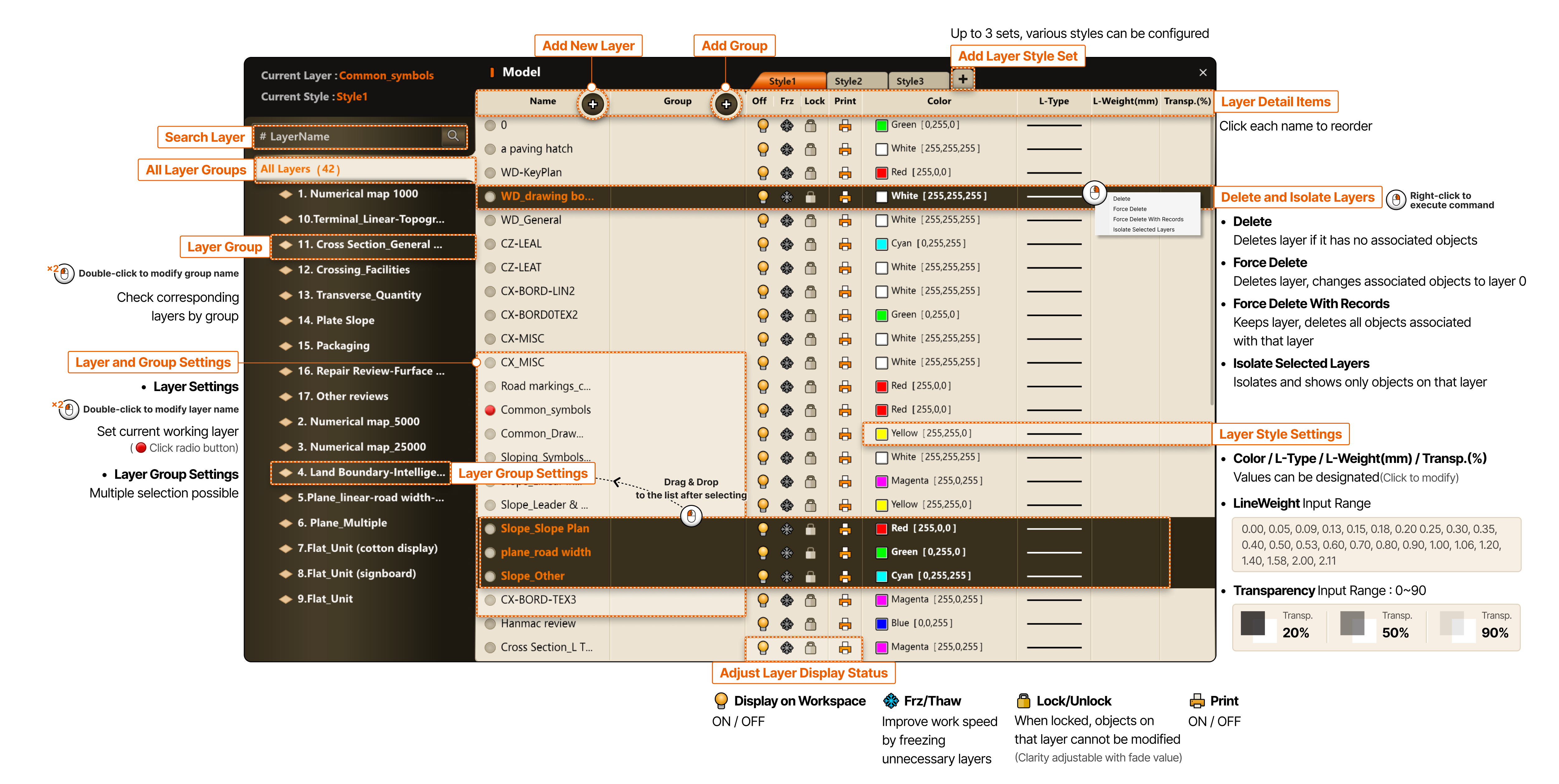
- Search Layer
- All Layer Groups
- Layer / Group Settings
- Layer Settings : Double-click to modify layer name, set current working layer (Click radio button)
- Layer Group Settings : Multiple selection possible
- Layer Group Settings
- Add New Layer
- Add Group
- Add Layer Style Set
- Up to 3 sets, various styles can be configured
- Layer Detail Items
- Click each name to reorder
- Delete and Isolate Layers
- Right-click to execute command
- Delete : Deletes layer if it has no associated objects
- Force Delete : Deletes layer, changes associated objects to layer 0
- Force Delete With Records (Delete Objects Only) : Keeps layer, deletes all objects associated with that layer
- Isolate Selected Layers (Separate corresponding layer objects) : Isolates and shows only objects on that layer
- Layer Style Settings
- Color / L-Style / L-Weight(mm) / Transp(%) : Values can be designated (Click to modify)
- LineWeight Input Range : 0.00, 0.05, 0.09, 0.13, 0.15, 0.18, 0.20 0.25, 0.30, 0.35, 0.40, 0.50, 0.53, 0.60, 0.70, 0.80, 0.90, 1.00, 1.06, 1.20, 1.40, 1.58, 2.00, 2.11
- Transparency Input Range : 0~90 / Transparency 20% / Transparency 50% / Transparency 90%
- Adjust Layer Display Status
- Display on Workspace : ON / OFF
- Freeze/Thaw : Improve work speed by freezing unnecessary layers
- Lock/Unlock : When locked, objects on that layer cannot be modified (Clarity adjustable with fade value)
- Print : ON / OFF