HYPERLINK
HYPERLINK (Command)
Section titled “HYPERLINK (Command)”- Inserts a hyperlink into an object, linking to an external website, file, email address, or a specific view within the same drawing.

1. Add a Hyperlink to an Object Demo Video
Section titled “1. Add a Hyperlink to an Object Demo Video”1) Run the “HYPERLINK” command.
2) Select the object (line, polyline, block, image, etc.) to assign the hyperlink to.
3) Press ENTER to complete the selection.
4) The Hyperlink dialog box appears.
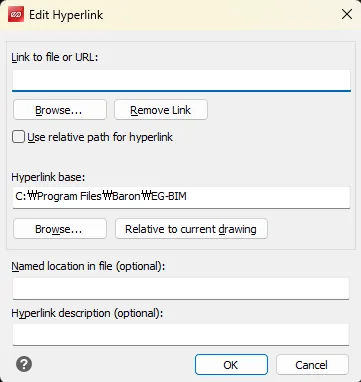
5) Enter or select one of the following:
- Web address (URL): ex)
https://www.google.com - File path: ex)
C:\Project\drawing.dwg
6) Click “OK” to complete the setup.
7) Hovering over the object displays a link indicator.

2. Open a Hyperlink
Section titled “2. Open a Hyperlink”1) Select the object with the assigned link.
2) Press Ctrl + left mouse button.
3) The specified web browser, program, or email client launches.
3. Edit / Delete a Hyperlink Demo Video
Section titled “3. Edit / Delete a Hyperlink Demo Video”1) Run the “HYPERLINK” command.
2) Select the linked object.
3) Press ENTER to complete the selection.
4) The Hyperlink dialog box appears.
5) You can change or delete the link address.
6) Click “OK” to complete the setup.