MLINE
- Draws multiple parallel lines.
Command Options
Section titled “Command Options”
-
Load style > Loads an .mln file to import a style.
-
Justification > Sets the justification to Top, Zero, or Bottom.
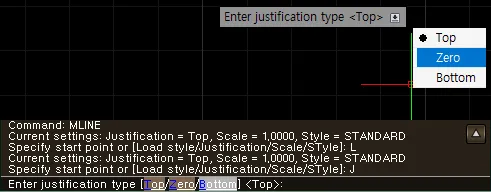
-
Scale > Sets the scale value.

-
STyle > Lets you check or set the MLINE style name.


1. How to Draw Multiple Parallel Lines
Section titled “1. How to Draw Multiple Parallel Lines”1) Click to specify the Start Point, then click to specify the Next Point.
2) Continue clicking Next Point at the desired locations, and once all lines are drawn, press the Space bar or ENTER.
-> While clicking Next Point at the desired locations, you can use the [Close/Undo] option.
2-1) If you click or type Close in the Command Input Window, it closes based on the Start Point.
2-2) If you click or type Undo in the Command Input Window, it returns to just before the last Next Point was drawn.
2-3) While clicking Next Point at the desired locations, press the ESC key if you want to cancel everything.
Demo Video
Section titled “Demo Video”- Drawing Multiple Parallel Lines: Demo Video
- Multiple Parallel Line Options - Load Style: Demo Video
- Multiple Parallel Line Options - Justification, Scale, Style: Demo Video