WIPEOUT
- Creates a wipeout box, an area that masks objects.
- You can directly specify the area to mask, or set the interior of a closed polyline as the masking area.
- The wipeout box masks objects that are lower in the draw order than itself.

- WIPEOUT drawing option keywords
- Frames: ON: Displays the outline of the wipeout box / OFF: Hides the outline of the wipeout box.
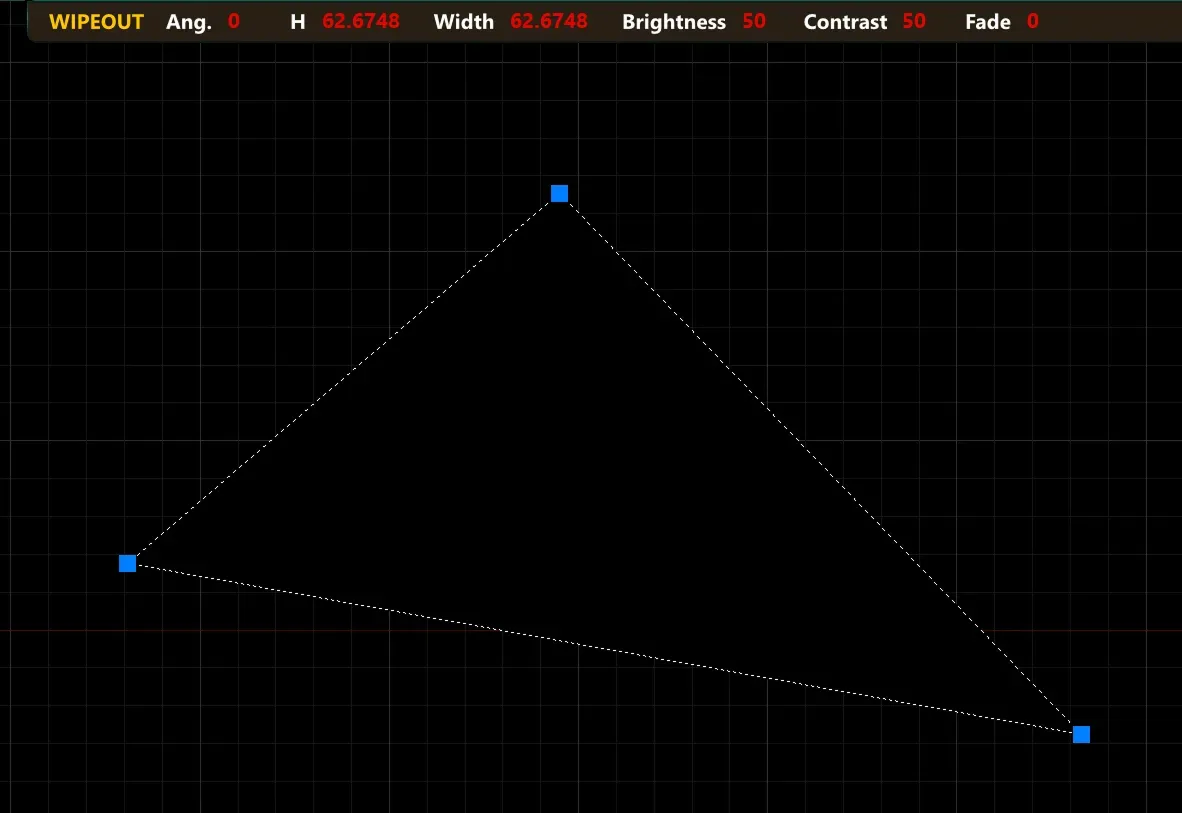
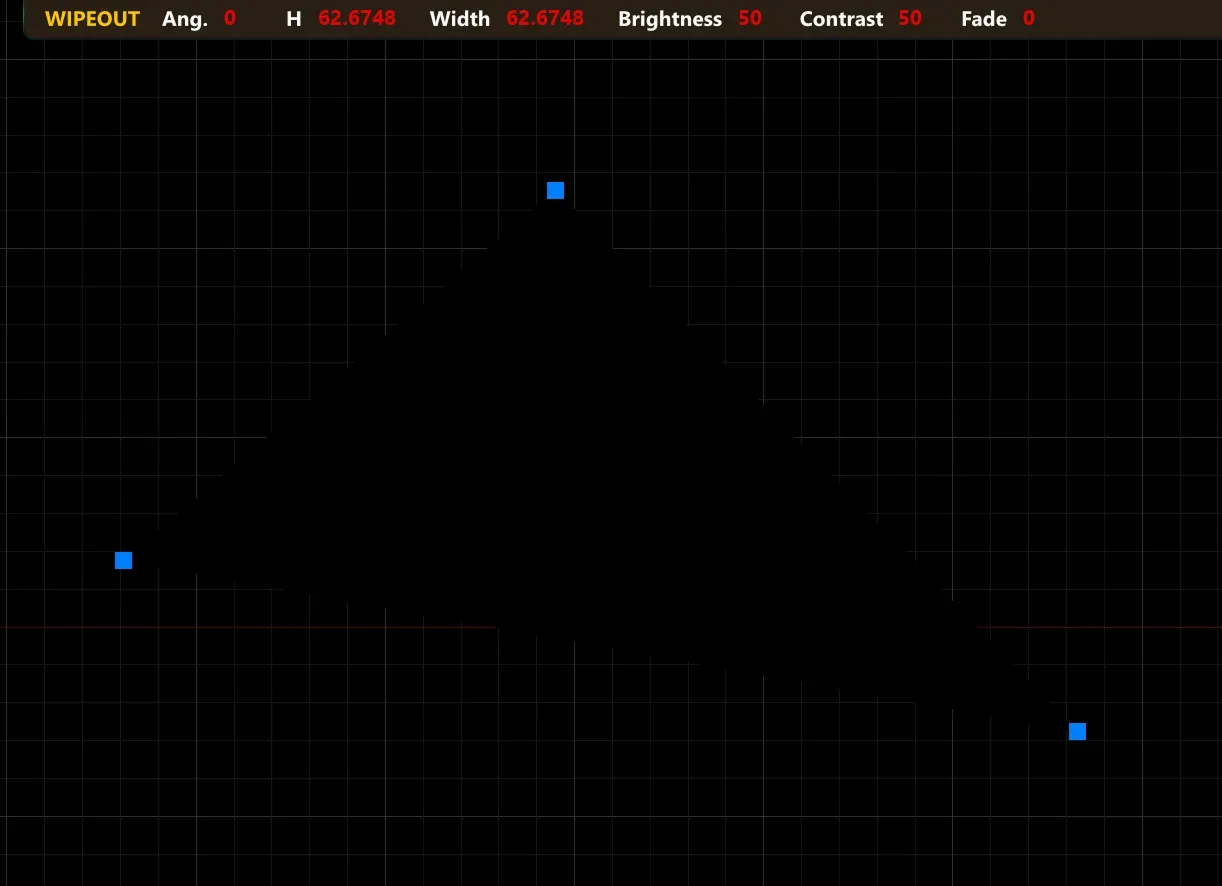
- Polyline: Creates a wipeout box inside a closed polyline.

- WIPEOUT line drawing option keywords
- Angle: Draws a wipeout box line at the specified angle.
- Length: Draws a wipeout box line with the specified length.
- Follow: Draws a line at the same angle as the previously drawn wipeout box line.
- Close: Closes the wipeout box and ends the command.
- Undo: Undoes the previously drawn wipeout box line segment.
1. Drawing an Area to Mask Objects Demo Video
Section titled “1. Drawing an Area to Mask Objects Demo Video”1) Run the “WIPEOUT” command.
2) Click with the mouse on screen to specify the area to mask.
3) Press ENTER or enter the Close keyword to create the wipeout box and end the command.
2. Drawing a Wipeout Box Using a Closed Polyline Demo Video
Section titled “2. Drawing a Wipeout Box Using a Closed Polyline Demo Video”1) Run the “WIPEOUT” command.
2) Enter the Polyline keyword.
3) Select a closed polyline on screen.
4) Choose whether to delete the polyline, and a wipeout box is created inside it.