WBLOCK
- Saves (exports) a selected object or block from the drawing as a new DWG file.

1. Saving a Block or Part of an Object to an External File Demo Video
Section titled “1. Saving a Block or Part of an Object to an External File Demo Video”1) Type “WBLOCK” in the Command Input Window.
2) Set the desired options in the Write Block dialog box.
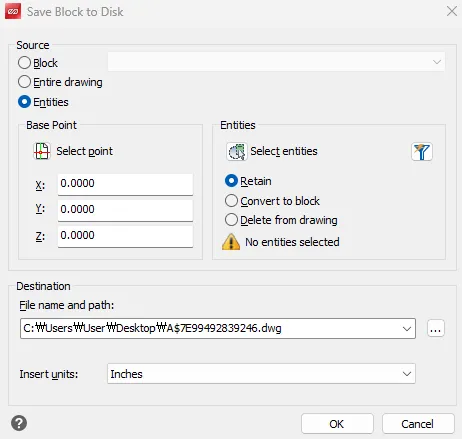
3) After configuring the settings, click the OK button.
4) The selected content is saved as a new DWG file.
2. Key Features
Section titled “2. Key Features”1) Source (selecting what to save)
- Block: Selects a block defined in the drawing and saves it as a DWG file.
- Entire drawing: Saves the entire currently open drawing as a single DWG file.
- Entities: Selects individual objects and saves them as a DWG file.
2) Base Point
- Select point : Specifies the base point for insertion with the mouse
- X, Y, Z: Enters the base point directly as coordinate values.
3) Entities (how objects are handled)
- Select entities : Selects the objects to save
- Retain: Keeps the original objects unchanged in the drawing.
- Convert to block : Converts the selected objects into a block within the drawing and saves it
- Delete from drawing: Deletes the selected objects from the drawing, saving them only to the external file.
4) Destination
- File name and path : Specifies the save path and file name for the new DWG file
- Insert units : The units applied when later inserting the block into another drawing