MPERPENDICULAR
- Draws perpendicular lines along a line segment at a specified interval.
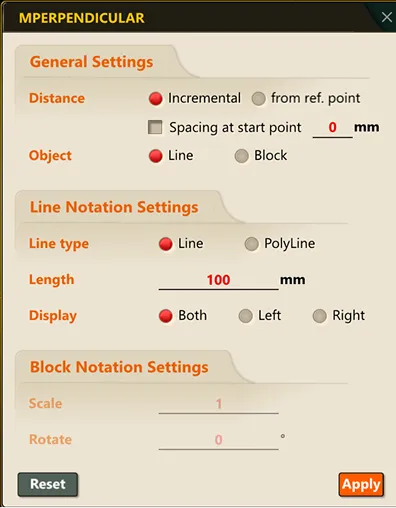
- When you run the command, the command options popup window opens.
- In the command options popup window, clicking the “OK” button saves the options and starts inserting the perpendicular lines.
- Clicking the “Reset” button resets the command options to the default settings.
1. Inserting Perpendicular Lines at a Specified Interval Along a Line Object Demo Video
Section titled “1. Inserting Perpendicular Lines at a Specified Interval Along a Line Object Demo Video”1) Run the “MPERPENDICULAR” command.
2) In the command options popup window, modify the settings and click the “OK” button.
3) On screen, use the mouse to select the line object to insert perpendicular lines on, the base point, and the direction of travel.
4) In the Command Input Window, enter the distance from the previous point and press ENTER to create a perpendicular line.
5) To end the perpendicular-line insertion, press the ESC key to exit the command.