LBTLINE
-
Inserts equally spaced division lines between two lines.
-
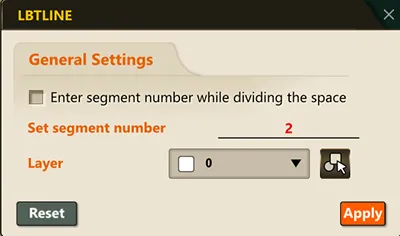
Running the command and entering the Settings(S) keyword opens the command option popup window. In this popup window, you can configure the command’s operating options.
-
Clicking the “Reset” button resets the command options to their default settings.
-
If “Enter Division Count” is checked during command execution, you can enter the number of divisions between the two lines each time the command is run; if unchecked, the division lines are inserted according to the saved division count setting.
-
You can specify the layer for the division lines using the combo box, or click the
 button to select an object on the screen and set that object’s layer as the layer for the division lines.
1. How to Insert Division Lines Between Two Lines Demo Video
Section titled “1. How to Insert Division Lines Between Two Lines Demo Video”1) Run the “LBTLINE” command.
2) Select the two lines on the screen between which you want to insert division lines.
3) Press ENTER to create division lines between the two selected lines and end the command.
2. How to Modify the Division Line Settings Demo Video
Section titled “2. How to Modify the Division Line Settings Demo Video”1) Run the “LBTLINE” command.
2) Select/enter the Settings(S) keyword.
3) Change the settings as desired in the command option popup window.
4) Click the “OK” button to save the settings.